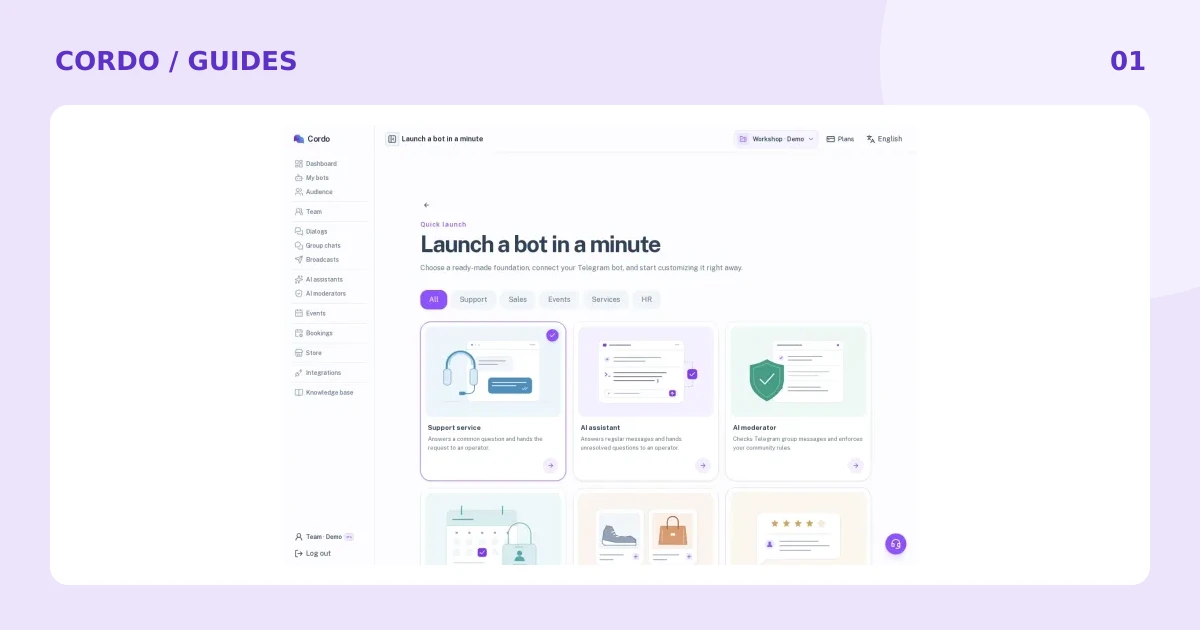
An AI moderator helps maintain a Telegram group by checking new messages against your rules and applying configured actions. To set one up in Cordo, create a moderator, define rules and exceptions, give the bot the required permissions, and connect the group.
Good moderation starts with a clear policy. Decide what is actually prohibited in your community: unapproved advertising, insults, unrelated links or certain topics. Then configure the tool to follow those decisions.
Before you start
- Have administrator access to the Telegram group.
- Connect a bot to Cordo. If needed, follow the first bot guide.
- Prepare short community rules and a list of allowed websites.
- Use a separate test group, or test the setup before inviting members.
- Check the project owner's available Cordo Credits.
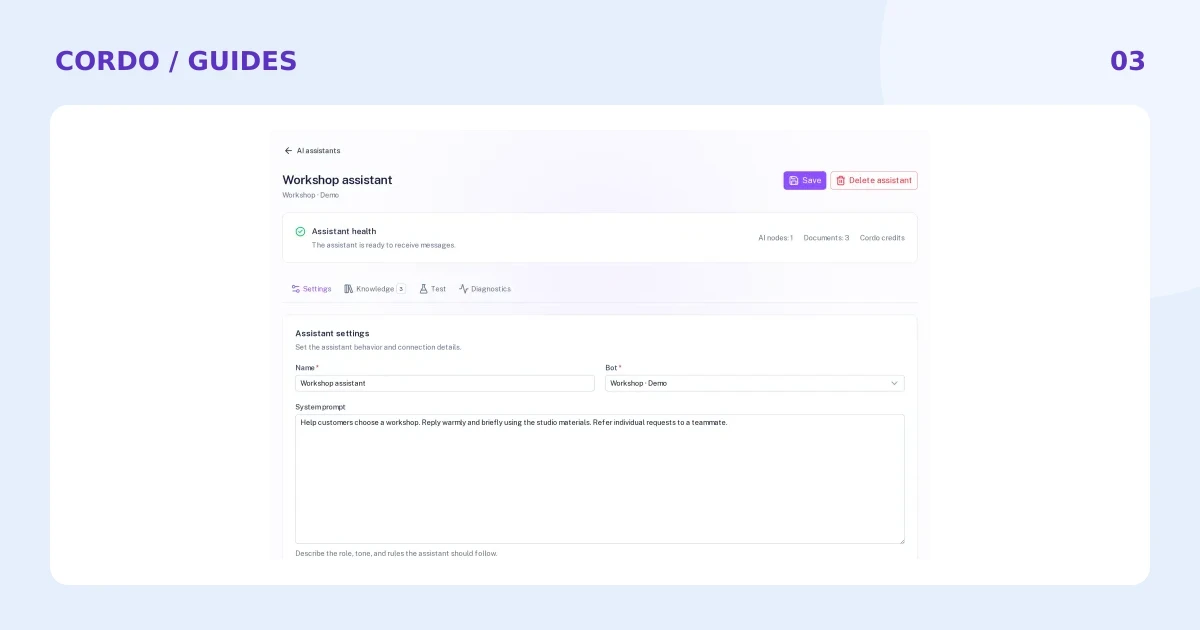
This guide covers group moderation. For customer replies in private chats, use an AI assistant instead.
Step 1. Create a moderator
In the correct project, open AI moderators → Create moderator. Give it a name such as “Workshop community moderator” and select the bot.
In the General tab, enable AI moderation. AI checks use Cordo Credits from the project owner's balance. Check that credits are available before testing or activating the moderator.
There is also a Without AI mode with a limited set of local checks. It is not equivalent to contextual AI moderation: do not expect the same advertising or prohibited-topic detection. Read the current mode description in the interface before relying on a particular check.
Step 2. Choose the rules
Open Rules and sanctions. Enable checks that match your community's policy:
- Advertising: unwanted promotional messages.
- Profanity: insulting or profane language.
- Custom words and phrases: specific unwanted expressions.
- Links: a separate setting for links and domains, with allowed exceptions.
- Banned topics: subjects the AI should identify from context.
In a ceramics club, you might prohibit unrelated sales offers while allowing discussions about tools and materials. A broad “ban all advertising” rule can otherwise catch a useful recommendation from a member.
Use the contextual instructions in General to explain the distinction:
This is a community for ceramics students. Members may discuss materials and share their experience. Treat offers to buy unrelated services, mass invitations to other channels and get-rich-quick messages as unwanted advertising. Do not treat an ordinary question about materials or a class review without a sales pitch as advertising.
These instructions clarify classification. They do not replace action settings or add moderation features that are not available in the interface.
Step 3. Set the consequences
Under the sanction sequence, set thresholds and actions. A cautious starting policy might be:
- First violation: a warning.
- Repeated violations: a temporary restriction on sending messages.
- Persistent violations: a temporary ban, where it fits your policy.
This is an example rather than a universal recommendation. A small class group and a large public community have different needs. Avoid starting with a permanent ban for ambiguous messages.
The first threshold begins at one warning, and subsequent thresholds increase. For temporary restrictions, check the duration in hours. Save the rules, then read them as an administrator: what happens after the first violation, the third and the next?
The warning message should help the person understand what to change:
Please do not post advertising without permission from an administrator. The group rules are in the pinned message. If you believe this restriction was a mistake, contact an administrator.
Step 4. Add exceptions
Open Exceptions and add only what you need:
- your studio's domain, without
https://, such asexample.com; - an approved phrase that would otherwise trigger a false positive;
- a trusted Telegram username if that person's messages should be excluded from checking entirely.
Do not exempt all regular members because of a single false positive. Identify the rule that triggered and refine it first. Otherwise, a large portion of the group may stop being checked.
Step 5. Test the instructions before connecting
Use Test instructions to check a sample message against the current settings. This test does not save settings or apply sanctions to a real member. After testing, save your changes separately.
Prepare both acceptable and prohibited examples:
- “Which clay would you recommend for a beginner?” is an ordinary question.
- “Buy from me today, discount ends tonight, DM now” is an unwanted sales pitch if your rules prohibit it.
- A link to the approved studio website should respect the domain exception.
- A critical comment about a difficult class should not be removed simply because it is negative.
Testing allowed messages is as important as testing violations: it exposes overly broad rules. AI test requests may consume funds.
Step 6. Connect the Telegram group
- Add the selected bot to your test group.
- Make it an administrator with permission to delete messages and restrict members.
- Confirm that your own Telegram account is also a group administrator.
- In Cordo, open Chats → Connect chat.
- Choose an eligible saved group belonging to that bot, or generate a connection command and send it in the intended Telegram group.
- Confirm that the group appears in the connected chat list.
Connection commands expire. If yours has expired, generate a new one. Do not copy a command from someone else's screenshot; use the one Cordo generates for your moderator.
Save your settings and activate the moderator. It checks new messages in connected groups. It is not an automatic cleanup tool for the group's entire old history.
Step 7. Review actions and launch
Test with an ordinary member account, not only an administrator account. Agree on the sample messages beforehand and begin with warnings so you do not accidentally lock someone out of the test.
In Actions, review the reason and result. If a restriction is not applied, check bot permissions, the group type and settings. Some Telegram actions depend on the capabilities of that particular chat.
Before connecting your main group, pin the rules and an administrator contact. Review the log daily during the first few days. If many legitimate messages are flagged, pause the moderator, refine the rules and repeat the tests.
Troubleshooting
The bot is in the group, but it will not connect
Check your account's admin status, the bot's admin status, delete and restrict permissions, the command's expiry and the selected bot. Adding a bot to a group alone does not finish the Cordo connection.
Useful links are flagged
Check the link rule and trusted domains. Enter a domain rather than a complete page URL with parameters. Then test the entire message: promotional text around an allowed link may be the actual cause.
Advertising is not detected
Check that AI moderation and advertising detection are enabled, the connection is available and the balance is sufficient. Local checks do not replace contextual analysis.
Can the moderator make every decision on its own?
AI can misinterpret jokes, quotes and ambiguous wording. Keep a way to contact an administrator and review results regularly. The aim is less repetitive manual work while keeping the rules understandable to people.