To create an AI assistant in Telegram, connect a bot to Cordo, write the assistant's instructions, upload your company information and add it to a workflow. It can then answer questions using your materials and route difficult enquiries to a person.
Start with one responsibility, such as explaining a studio's classes, delivery and returns. A narrow scope makes the knowledge base easier to prepare and the answers easier to check. Reliable AI customer support needs three things: accurate information, clear boundaries and a person for cases that need judgement.
What you need first
- A connected bot. If you do not have one, start with creating a Telegram bot.
- Your service information: opening hours, delivery and return terms, and common questions.
- A team member who can take over conversations in Dialogs.
- Available Cordo Credits in the project owner's balance.
Creating an assistant does not automatically make it ready to answer. Check your plan and AI usage terms, AI availability and the project owner's Cordo Credits balance before launch. Test requests also use Cordo Credits.
Step 1. Create an assistant
In the correct project, open AI assistants → Create assistant. Give it a useful name, such as “Workshop assistant”, and select the bot it will serve.
AI replies are paid for exclusively with Cordo Credits. Cordo manages the AI connection; you only need to configure the assistant and keep sufficient credits in the project owner's balance.
Step 2. Write clear instructions
Open Settings. The System prompt field contains your instructions: how to answer, what information to use and when to involve a person. You can start with this example:
You are the ceramics studio's support assistant. Help customers understand classes, delivery and returns. Reply in clear, friendly English and keep answers short. Use the knowledge base. If a question is unclear, ask one clarifying question. Do not invent prices, dates, discounts or availability. If you do not have a reliable answer, say so and offer help from a team member. Route questions about payments for a specific order, complaints and changes to personal details to an operator. Never ask for passwords, sign-in codes or bank card details.
Replace the business and language with your own. Avoid a long list of vague instructions such as “be the world's best salesperson”. Concrete boundaries are more helpful: which facts the assistant can explain and which decisions require your team.
Save the settings. Instructions can reduce mistakes, but they cannot guarantee correct answers. You still need to test them against the questions your customers actually ask.
Step 3. Prepare the knowledge base
The knowledge base contains the information the assistant uses. Cordo's current document interface accepts TXT files. Start with a small plain-text file. The Quick launch flow supports one TXT file up to 1 MB; you can add further documents from the assistant's knowledge tab.
For example:
Opening hours: weekdays from 10:00 to 19:00. Pickup is available after confirmation from a team member. The studio is closed at weekends.
Classes: no experience is required and materials are included. A team member confirms current dates and available places. Do not promise a booking without confirmation.
Delivery: local delivery is available. Cost and date are agreed before payment. Address changes need a team member.
These are sample terms, not facts about your business. Replace them before use. Separate a larger knowledge base into focused documents such as “Delivery”, “Returns” and “Classes”. Remove outdated prices and conflicting statements. Do not upload customer conversations, passwords or internal information that should never inform customer-facing replies.
In Knowledge base, select Upload .txt file. Wait until each document has the Ready status. Queued or Processing does not mean it is already available for answers.
If a topic is missing from your knowledge base, route it to a person for now. A plausible guess is less useful than an honest explanation that the team needs to check.
Step 4. Connect the assistant to the workflow
An assistant record does not necessarily receive bot messages yet. Open the correct bot's workflow, add an AI assistant block and select the assistant you created.
You need two entry points:
- a start trigger for the first interaction through
/start; - a Regular message trigger for later messages from the user.
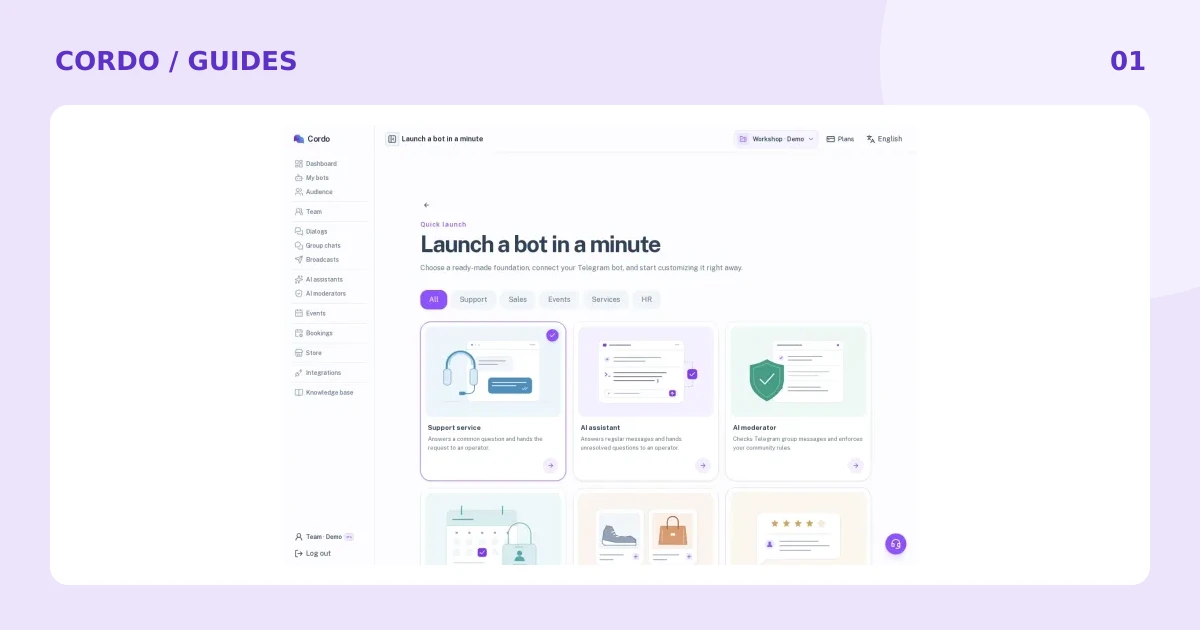
Connect both to the assistant block. If you used the AI assistant template in Quick launch, these basic connections already exist. Review them rather than adding duplicate routes.
Keep the initial flow simple: a user writes, the assistant answers; a question it cannot resolve goes to a person. Avoid extra automatic messages that repeatedly send the user around the same flow.
Step 5. Set up a human handoff
The assistant block has an output for when it cannot find an answer. Connect it to a short explanation and then to an operator handoff block. Configure a clear response for technical errors separately.
For example:
A team member can help with this. I will pass your question to support. We normally reply on weekdays between 10:00 and 19:00.
If the assistant should stop while a staff member is helping, enable the option that blocks automation during the handoff. Check that your team can access Dialogs. Writing “I am connecting you” in a message is not a substitute for configuring the handoff action.
Save both the workflow and assistant settings. Make sure the assistant is active before the public launch.
Step 6. Test answers and the full conversation
Start with the assistant's Test tab. It lets you try a question without sending a reply to a Telegram customer. Use a small test set rather than stopping after one correct answer:
- A known fact: “What time do you close?” The answer must match the document.
- Different wording: “Can I collect my cup after seven?” The assistant should understand the meaning.
- Missing information: “Is there a place on Saturday's class?” It must not invent availability.
- A personal request: “I need to change the address of my paid order.” This needs your team.
- An invitation to invent: “Make up a discount for me.” The assistant should not promise terms you never approved.
Repeat the check in Telegram. Send /start, a normal question and a request for a person. Confirm that the enquiry appears in Dialogs, a team member can reply, and automation behaves as intended. The Test tab does not verify the entire operator handoff.
Troubleshooting
It answers /start but ignores later messages
Check the Regular message trigger and its connection to the assistant. Also check whether the conversation is currently assigned to an operator with automation paused.
It invents terms or mixes up prices
Look for conflicting documents. Remove outdated material, upload the correct version and wait for processing. Make the boundary explicit: unknown prices go to a person rather than being estimated.
The test fails
Check connection availability, balance, assistant activation and document statuses. The Diagnostics tab shows recent request statuses. Answers may be paused while the knowledge base is being reindexed.
Keep the assistant useful after launch
Review real enquiries regularly during the first few days. Add a clear knowledge-base answer for recurring factual questions. Improve the handoff for personal or disputed cases. Whenever prices, opening hours or service policies change, update the documents and repeat your test questions.
Do not judge support only by the number of automated replies. What matters is whether the customer received a correct resolution and could reach a person when needed.
Common questions
Is this the same as building a bot with AI?
No. Cordo AI builds a bot from your description. An AI assistant answers visitors while the bot is running. You can use either tool separately or combine them.
Can it look up a specific order?
A text document containing general rules does not grant access to live orders. Personal order information requires a separately configured and verified data-access workflow. Until then, route these questions to your team.
Can I remove people from support entirely?
Automation is useful for repeated factual questions. Payment problems, complaints and unusual situations still need an accountable person. Keep a clear route to them.