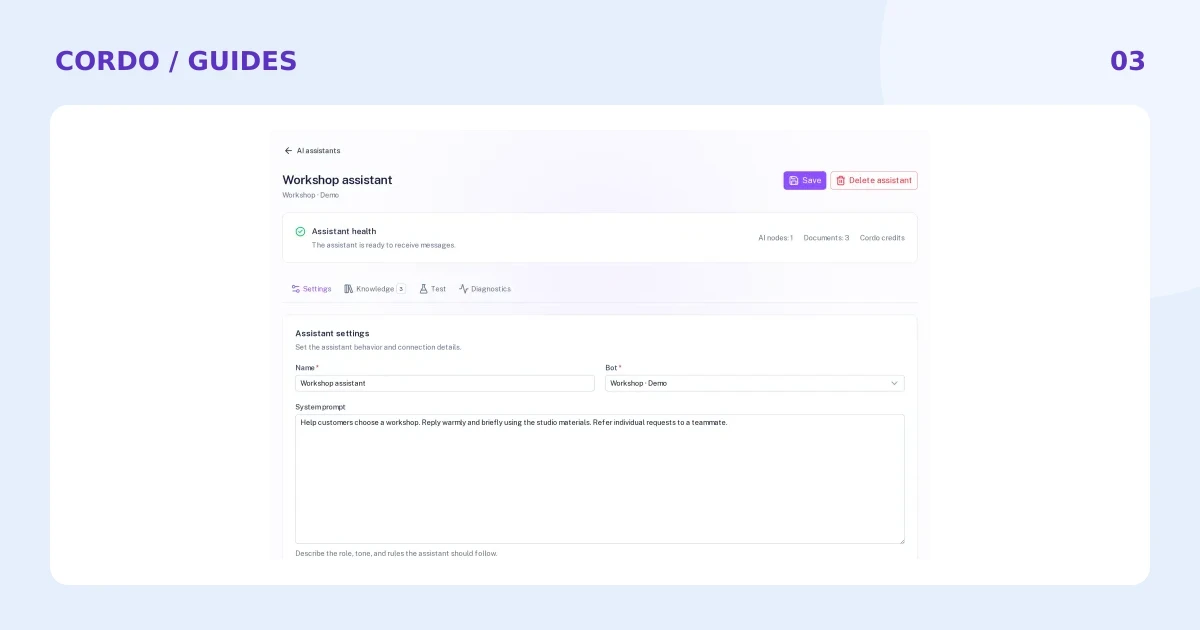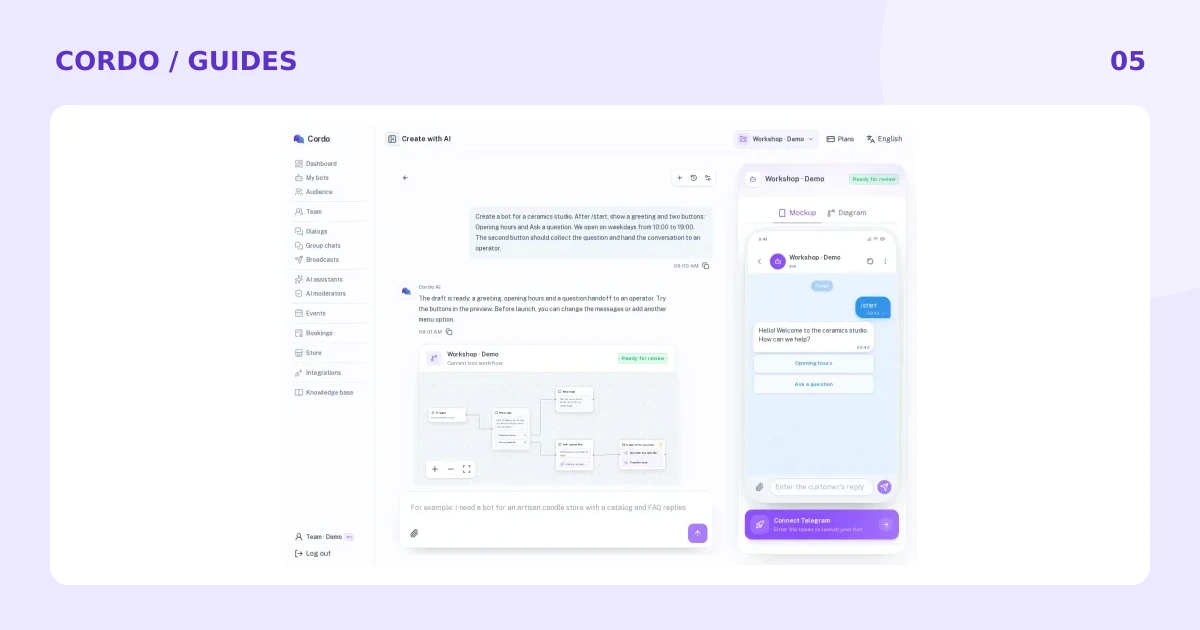
To create a Telegram chatbot without code, register it with BotFather, connect it to a bot builder, and configure its conversation flow. In this guide, we will use Cordo: start with a support template, change the messages, and check that a visitor can ask a question.
You will end up with a bot that offers two clear actions: read an answer to a common question or contact a person. We will use a small ceramics studio as the example. Replace its details with your own; the setup steps stay the same.
Before you start
- Have a Telegram account and access to Cordo.
- Choose a display name and a short username for the bot's link, such as
my_workshop_help_bot. The username must be available. - Prepare a greeting, an answer to one common question, and decide who will handle incoming enquiries.
Creating a bot in BotFather is free. Builder features and limits depend on your Cordo plan. A simple button-based workflow does not need AI. AI usage and its costs are covered in the separate assistant and AI builder guides.
BotFather creates the bot's Telegram account and gives you an access token. It does not write replies or build a menu. We will configure that behaviour in Cordo.
Step 1. Create the bot in BotFather
- Open the official BotFather. Check the username
@BotFatherand its verification badge. - Select Start. Send
/newbot, or use the new-bot form available in BotFather. - Enter a display name, such as “Workshop helper”. This is the name visitors will see.
- Choose a username using Latin characters. It must end in
bot, for examplemy_workshop_help_bot. If it is taken, add your brand or location. - Keep the bot's link and the token BotFather gives you. The token allows an application to manage the bot.
If you open the link and the bot does not reply yet, that is expected. Its account exists, but it has no conversation flow.
Paste the token only into the dedicated connection field. Do not share it in a public message or screenshot. If you expose it, replace it through BotFather and update the connection in Cordo.
Step 2. Choose a ready-made workflow
Sign in to Cordo and select the project you want to use. Open My bots, start creating a bot, and choose Quick launch. Select Support service, then select Continue.
A template is a ready-made sequence of actions. This one already contains a greeting, buttons, a question and an operator handoff. It is easier to adapt this starting point than to build the whole flow from scratch.
In the connection form, enter an internal name for the bot and paste the token from BotFather. Select Create bot and wait for the setup to finish. Cordo connects the bot and saves the selected workflow.
If the bot connects but a later setup step fails, read the message on screen. The resume action can finish an incomplete setup; you do not need to create another bot immediately.
Step 3. Write the greeting and answers
Quick launch opens the workflow after setup. To return later, find the bot in the list and open its workflow. Select the message block that contains the main menu. Its settings appear in the panel on the right.
Write a short greeting that explains what the bot is for:
Hello! This is the ceramics studio. You can check delivery details or ask us a question. Please choose a button below.
Give the two buttons distinct, useful labels:
- Delivery and pickup opens the prepared answer.
- Ask a question asks the visitor to write a message.
Renaming a button changes its label, but you should still check its connection. Make sure each button leads to the correct next block. The template already has these connections, so you can usually keep them and replace the wording.
In the delivery answer, include your actual service area, costs, timing and pickup arrangements. Instead of “We deliver quickly”, try “Local deliveries run on Tuesdays and Fridays. A team member will confirm the cost before you place an order”—but only if those are your real terms.
Step 4. Collect a question and hand it to a person
Open the block after Ask a question. The template uses a Question block, which waits for the visitor's reply and stores it in the selected workflow field.
- Change the question to “Please write your question in one message”.
- Keep the existing answer field for your first setup. It is simply where the workflow remembers what the visitor wrote.
- Keep a confirmation after the question, such as “Thank you! We have received your question. A team member will reply here during opening hours”.
- Check that an operator handoff follows the confirmation.
Do not promise a five-minute reply unless someone can deliver it. It is fine to state opening hours and explain that evening enquiries will be answered on the next working day.
Save the workflow. Seeing new text in the editor is not the same as saving it: visitors will not receive an unsaved change.
Step 5. Test the bot as a visitor
Open the bot's link in Telegram and select Start, or send /start. Test both routes:
- Read the greeting. Is it clear who owns the bot and what it does?
- Select Delivery and pickup. Check that the correct answer arrives.
- Send
/startagain and select Ask a question. - Send a question such as “Can I collect my order on Saturday?”
- Open Dialogs in Cordo, find that conversation and reply manually.
- Return to Telegram. The staff reply should arrive in the same chat.
If possible, ask a colleague to repeat the process from their own account. They may spot a label that makes sense to you but not to a first-time visitor.
Troubleshooting
The bot does not respond to /start
Check that you opened the correct bot, saved the workflow, and connected the start trigger to a message. If the same bot is connected to another builder, that service may be receiving its updates instead. One token is not suitable for independent simultaneous control by two services.
A message arrives, but its button does nothing
Check the connection from that specific button in the workflow. For a link button, verify the destination URL. Save the correction and start a fresh check with /start.
The enquiry exists, but a team member cannot see it
Check the selected project, bot and the team member's access to Dialogs. Make sure the route reaches the handoff block rather than ending with only a “We received your question” message.
Before sharing the link
- Replace all sample text and placeholders.
- Verify contact details, opening hours and service terms.
- Add a helpful description and image through BotFather.
- Test both routes and a real staff reply.
- Put the link on your website, profile or a pinned channel message.
A bot cannot start a private conversation with an arbitrary Telegram user. The person must open it and begin the interaction. Explain the benefit next to your link: “Check delivery details and ask the studio a question.”
Common questions
Do I need my own server?
Not for this setup. You build the workflow in Cordo rather than running your own bot program on a server.
Can I create a bot on my phone?
You can register it with BotFather on a phone. A larger workflow is easier to edit on a computer, but always test the finished bot in mobile Telegram.
Can I describe the task instead of editing a template?
Yes. Follow the guide to building a bot with Cordo AI. If you want the bot to answer customer questions using your company materials, use the AI assistant guide.